What this is for
A station is a counter or window, like "Window 3". The TV screen tells clients which station to go to.
Before you start
- You are signed in as office admin.
Steps
Tap Stations in the left menu.
Tap New Station. Fill in Station Name and Station Code, then tap Add.
To set up a station, open its actions menu (the ⋮ button, or right-click the row).
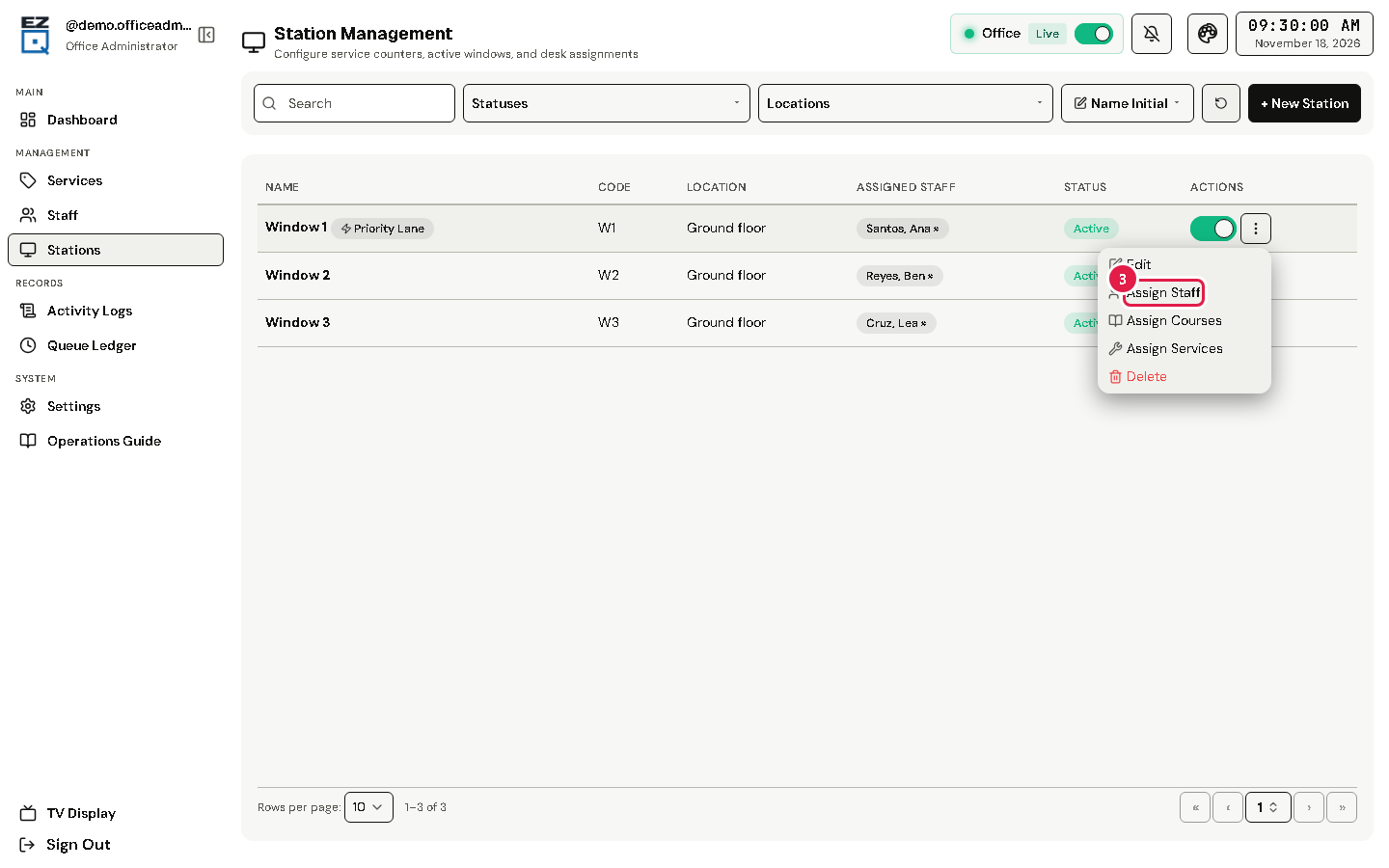
Choose Assign Staff and pick the teller in Select Staff.
Choose Assign Services to pick the services the station serves, then tap Save Services. Choose Assign Courses to pick its courses, then tap Save Assignments.
To stop a station for now, turn off its status switch.
Tip Turn on Priority Lane in a station's details to let its teller register priority clients at the counter. This also needs Enable priority queue on in Settings.
If something goes wrong
- A teller is at the wrong station: in Assigned Staff, tap their name to unassign them, then assign them again.