What this is for
Everyone who signs in needs an account. The role decides what they can do.
Before you start
- You are signed in as a system admin or IT admin.
Steps
Tap Users in the left menu.
Tap New User.
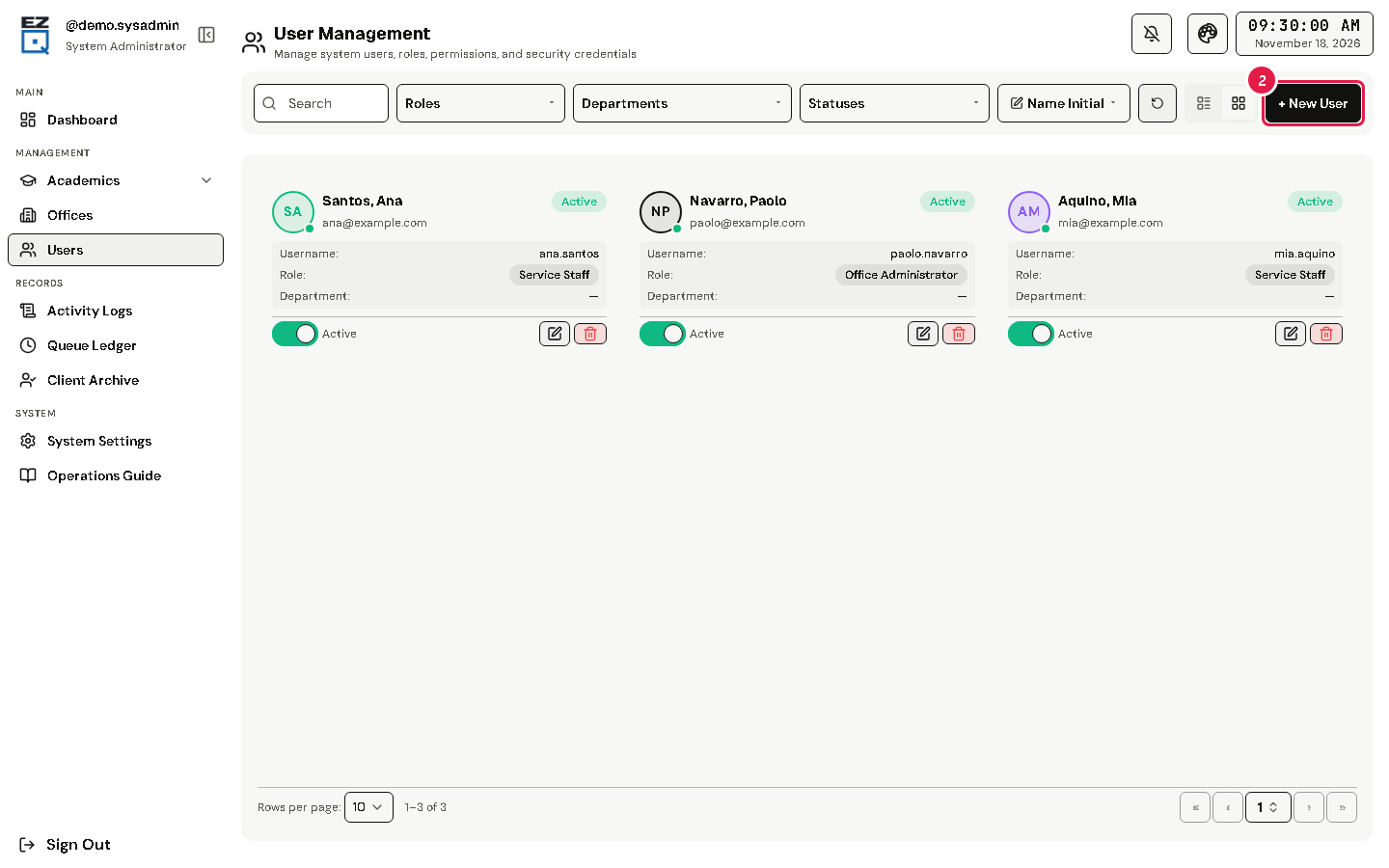
Fill in Full Name, Username, Email and Password.
Choose a Role, for example Office Administrator or Service Staff.
For office roles, choose the Department. For Service Staff, also choose the window. System and IT admins have no department.
Tap Add.
To change a user, open the actions menu (⋮) and choose Edit. Leave the password empty to keep it.
To stop an account for now, turn off its status switch.
Warning Delete removes the account for good. Its tickets and sessions are kept.
If something goes wrong
- No windows to choose: the window list shows "— No windows configured for this office —". Add stations for that office first.