What this is for
System Configuration controls EZQueue for every office.
Before you start
- You are signed in as a system admin or IT admin.
Steps
Tap System Settings in the left menu. System Configuration opens.
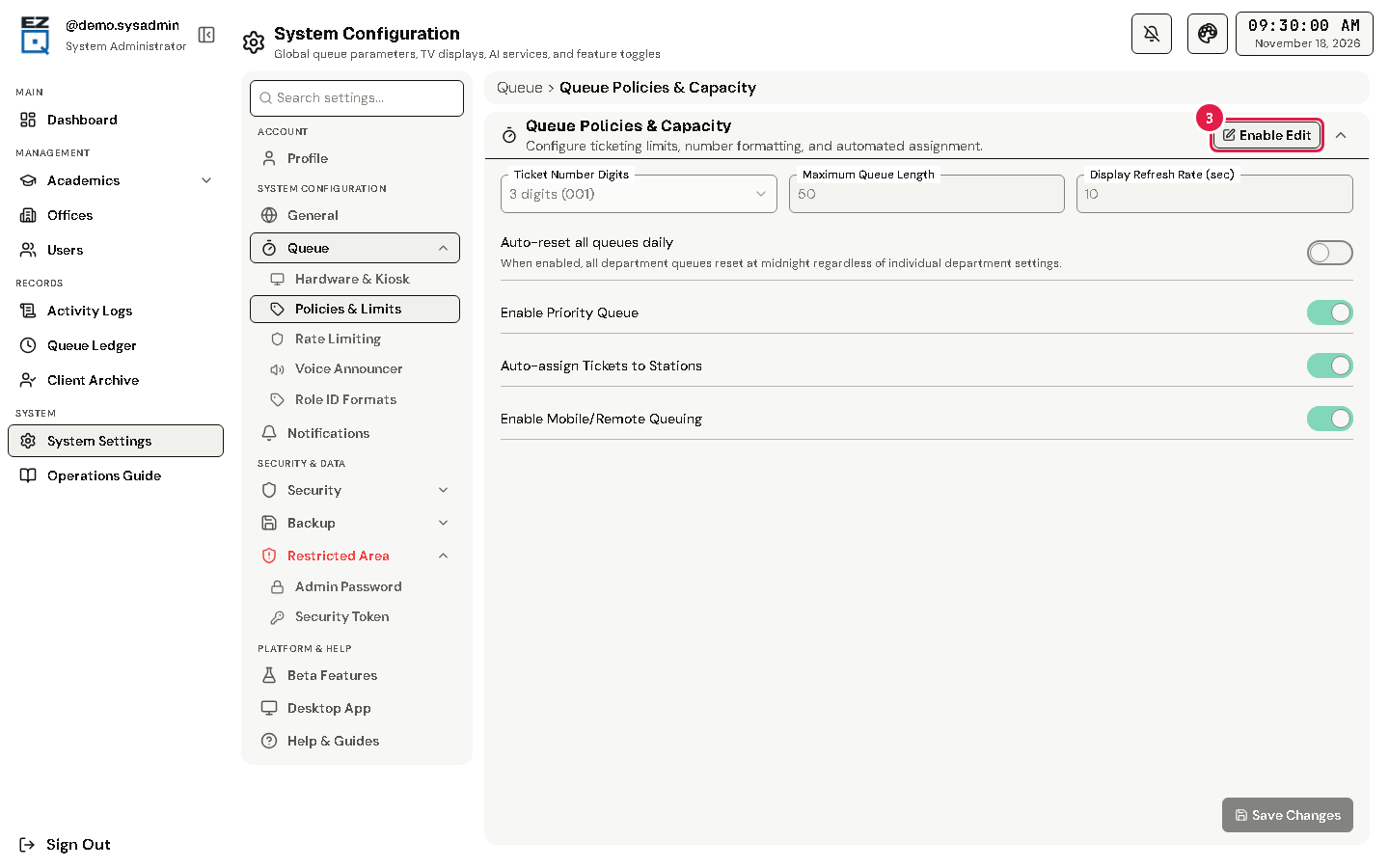
In the list on the left, tap a section. For example, under Queue, tap Policies & Limits.
Tap Enable Edit, change the values, then tap the save button at the bottom of the section.
Settings you may need:
- Queue > Hardware & Kiosk (Operational Status & Hardware): System Status and Kiosk Active. When the system is closed or under maintenance, kiosks and the remote portal show a message and give no tickets.
- Queue > Policies & Limits (Queue Policies & Capacity): Enable Mobile/Remote Queuing (getting tickets by phone) and Enable Priority Queue.
- Beta Features: Enable Analytics Dashboard, Enable System Reports View and Enable Machine Learning Forecasting. Each adds its page to the menu.
Tip Other sections include Rate Limiting & Abuse Prevention, Voice Announcer (Kokoro TTS) and Security Settings.