What this is for
Each office has its own line, services, staff and stations.
Before you start
- You are signed in as a system admin or IT admin.
Steps
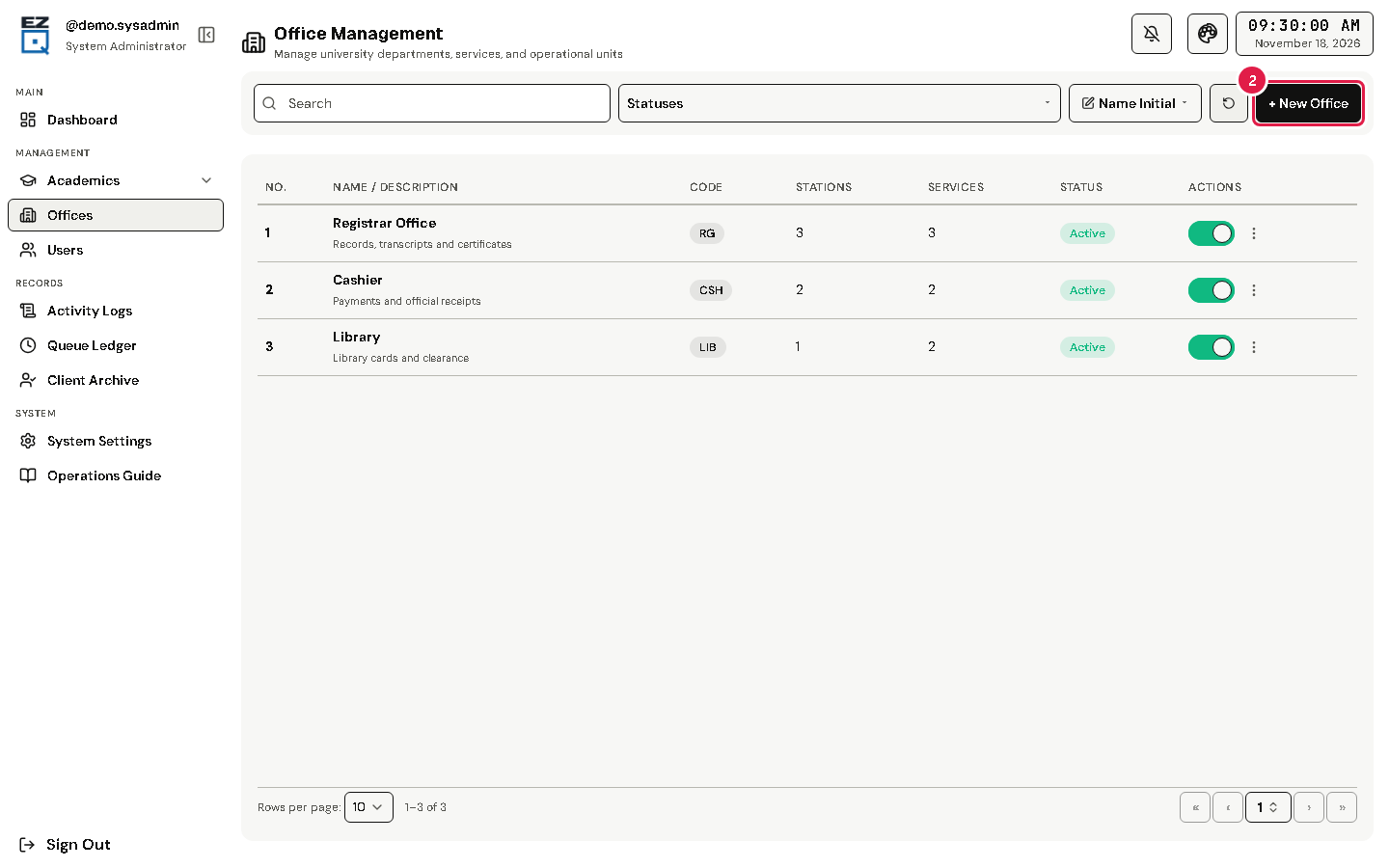
Tap Offices in the left menu.
Tap New Office.
Fill in Office Name and Office Code (both required), and a Description.
Tap Add.
To change an office, open its actions menu (⋮) and choose Edit. Choose Details to see it, with its assigned staff.
To stop an office for now, turn off its status switch.
Warning Delete asks you to type the office name before it removes the office.
If something goes wrong
- An error shows when you tap Add: read the message and check the required boxes (*).