What this is for
System Overview shows queue work across all offices, office traffic and system health.
Before you start
- You are signed in as a system admin or IT admin.
Steps
Tap Dashboard in the left menu.
Read the boxes at the top, for example Active Offices, Total Users, System Waiting and System Completed Today. Point at a box, or tap it, to see the numbers by office or by role.
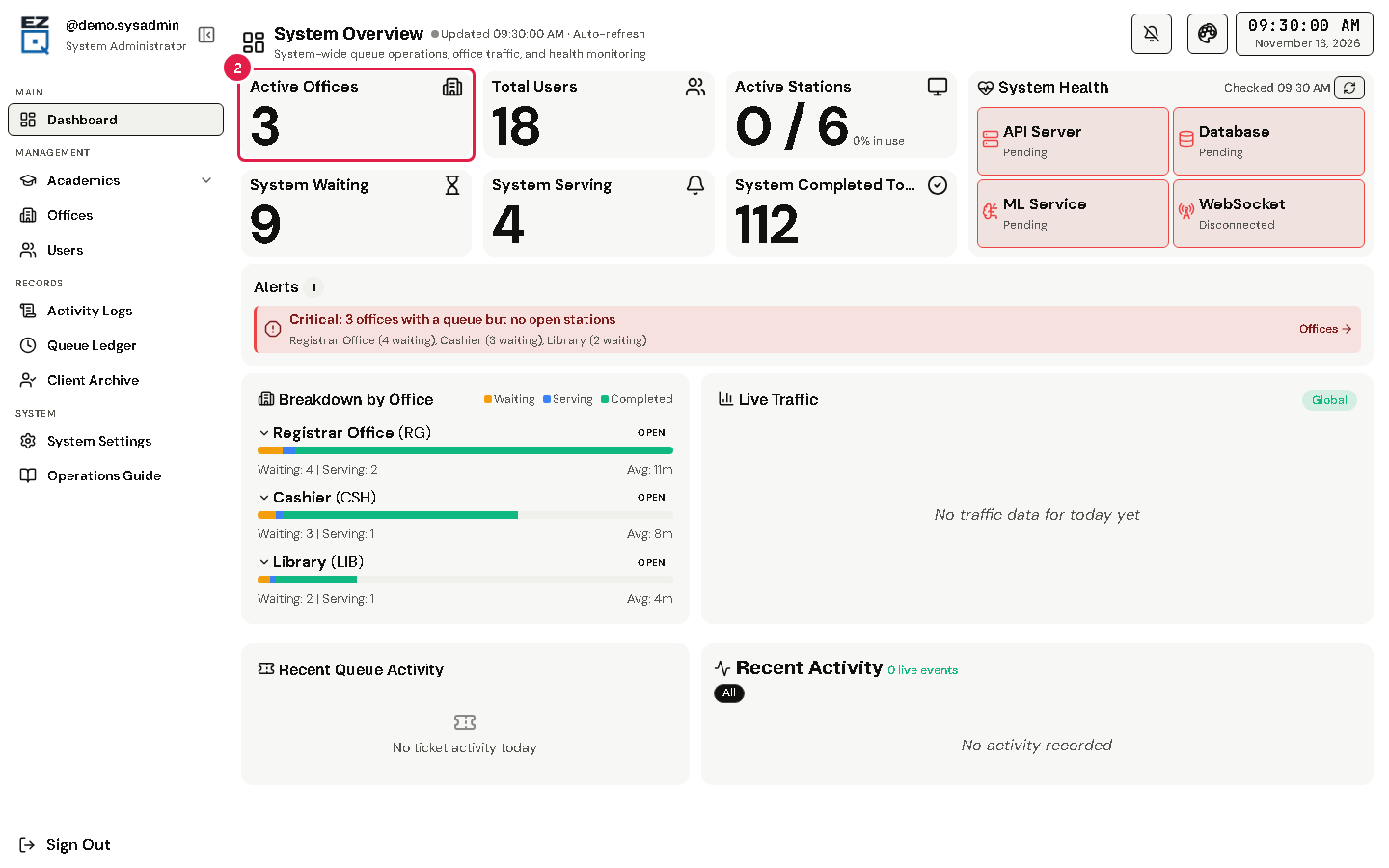
Check Alerts for anything that needs you.
Breakdown by Office shows each office's load. Live Traffic shows a chart of ticket traffic.
To check the system health again, tap Refresh system health.