What this is for
You can cancel a ticket you no longer need. You can also see every ticket made on this phone.
Before you start
- You have a ticket on this phone.
Steps
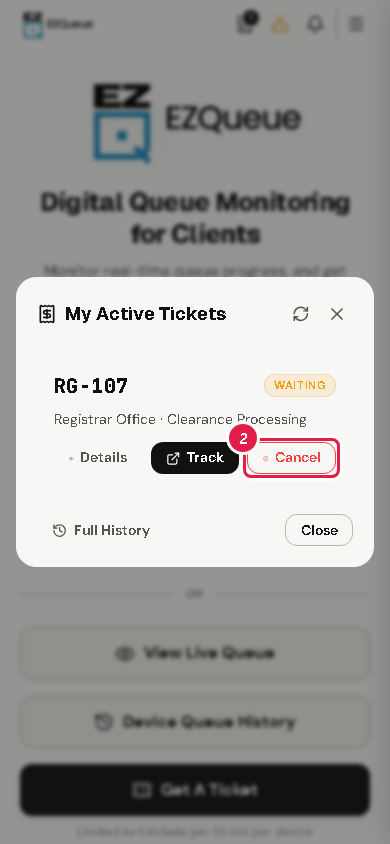
Tap the ticket icon at the top (My Active Tickets). It shows how many active tickets you have.
Find the ticket and tap Cancel.
Choose a reason, for example Wait time is too long. For Other reason, type your reason.
Tap Confirm. The ticket is cancelled.
Tip Track opens the ticket's live queue. Full History opens Device Queue History, with past and active tickets from this phone.
Tip The bell icon opens Notifications & Announcements. Tap Mark All Read when you have read them.
If something goes wrong
- "Failed to cancel ticket. Please try again.": check your internet, then try again.