What this is for
Before your ticket is made, you check everything once. Then you can save a copy of the ticket on your phone.
Before you start
- You chose your office and service.
Steps
On Transaction Details, type your purpose if asked. Some services ask for more information first. Tap Continue to Review.
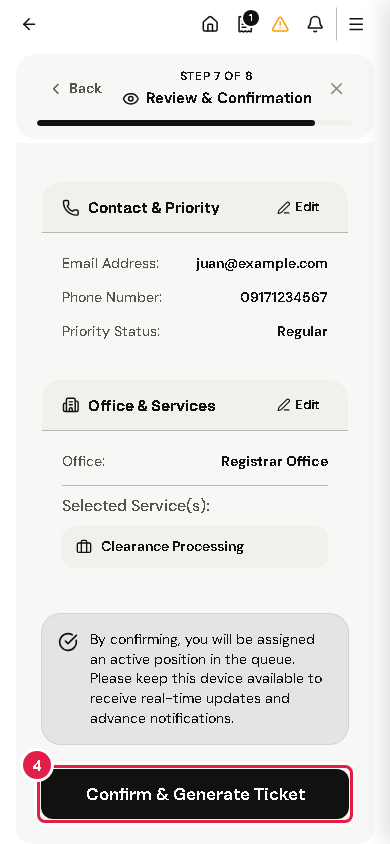
Read Review & Confirm. It shows your details, office and service.
To fix something, tap Edit on that part.
Tap Confirm & Generate Ticket. This gives you a place in the line.
Your ticket shows its number, a QR code and a TRACKING CODE. Tap Save as Image to keep a copy on your phone.
Tap Proceed to Live Queue to watch your place in line.
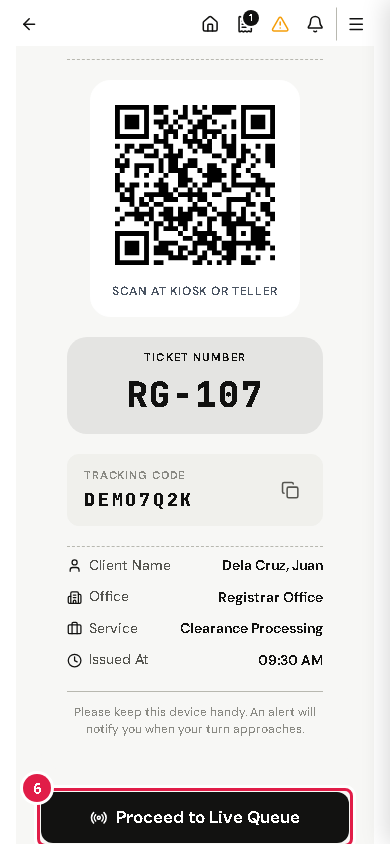
Tip Under the QR code the ticket says SCAN AT KIOSK OR TELLER.
Warning The portal asks you to keep this phone handy. An alert tells you when your turn is near.
If something goes wrong
- "Submission Error": read the message, go back with Edit, and try again.
- You need a ticket for another office: tap Register Another.