What this is for
You can join an office's line from your phone, without going to the kiosk.
Before you start
- You tapped Get A Ticket on the remote portal.
- Students, alumni, faculty and staff: have your ID number ready.
- An email address and a mobile number. Both are required.
Steps
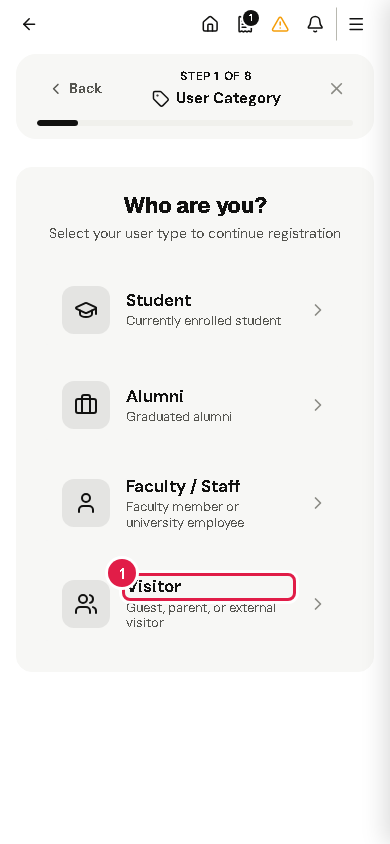
Tap who you are: Student, Alumni, Faculty / Staff or Visitor.
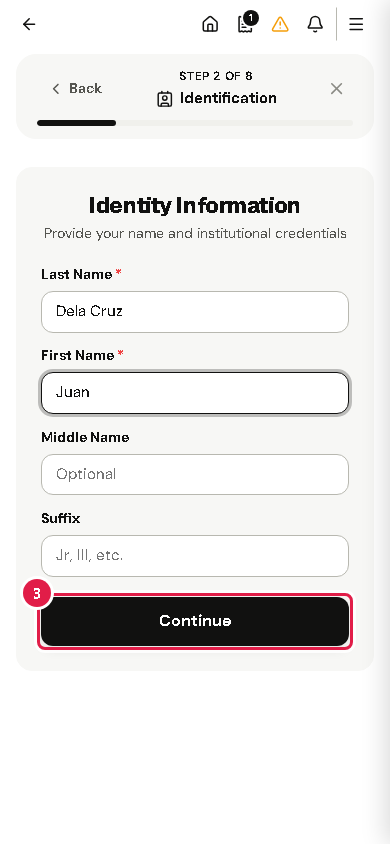
Type your ID number if asked, then your Last Name and First Name. If your ID has a QR code, you can tap Scan ID QR instead.
Tap Continue.
Type your Email Address and Mobile Number. The portal uses them for queue updates, notifications and checking who you are.
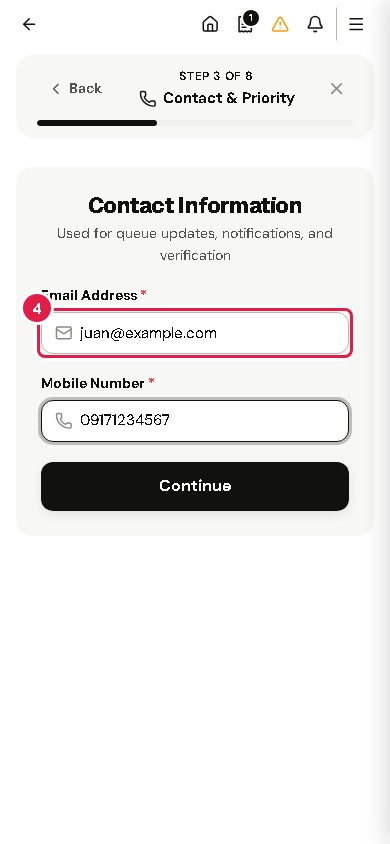
Tap Continue.
Tap the office you need, then the service you need. Tap Continue.
Tip On the identity step you can tick Connect my details to this device for faster queuing next time.
If something goes wrong
- "Notice: You already have an active ticket in …": you already have a ticket there. If you need another service, tap Continue again to queue anyway.
- An office is grey: its line is closed now.
- You want to stop: tap the X at the top, then Discard & Exit.