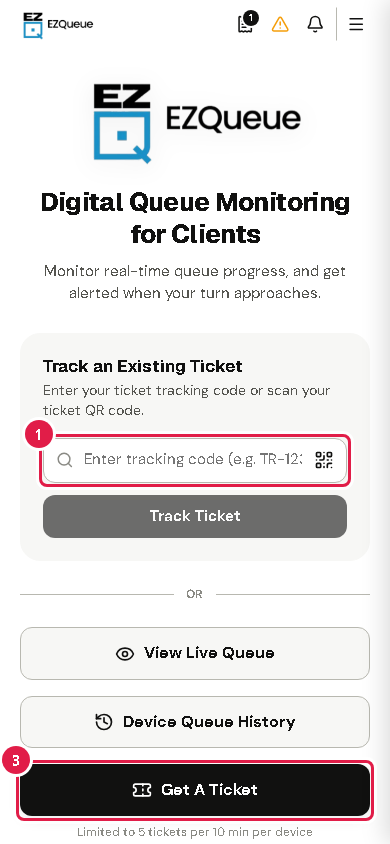
Tip Tap View Live Queue to see an office's line, or Device Queue History to see tickets made on this phone.
If something goes wrong
"Ticket not found. Please verify your tracking code.": check the code on your ticket and type it again.
No Get A Ticket button, or "Remote Queuing Disabled": getting tickets by phone is turned off. Get your ticket at the campus kiosk.
"System Currently Closed" or "System Under Maintenance": the queue system is not taking tickets now. Try again later.
2Get a ticket on your phone
Say who you are, how to reach you, and where you need to go.
What this is for
You can join an office's line from your phone, without going to the kiosk.
Before you start
You tapped Get A Ticket on the remote portal.
Students, alumni, faculty and staff: have your ID number ready.
An email address and a mobile number. Both are required.
Steps
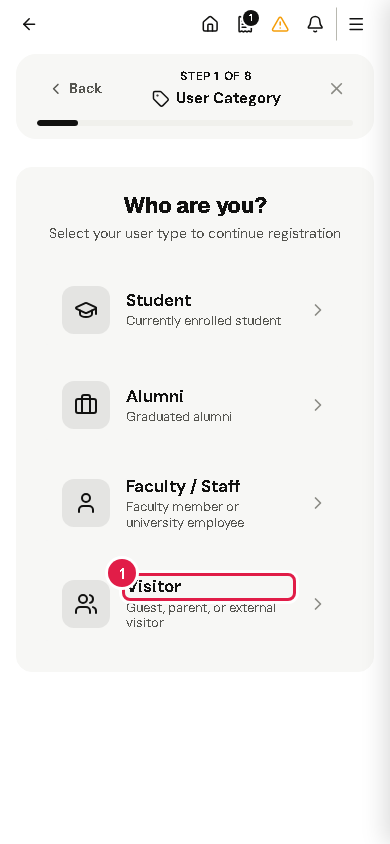
Tap who you are: Student, Alumni, Faculty / Staff or Visitor.
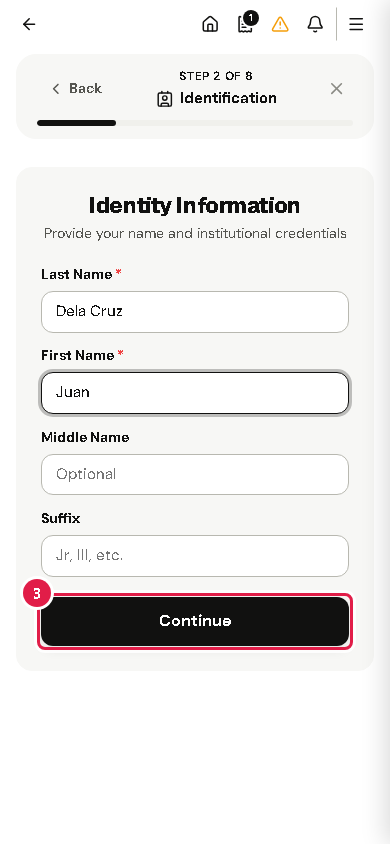
Type your ID number if asked, then your Last Name and First Name. If your ID has a QR code, you can tap Scan ID QR instead.
Tap Continue.
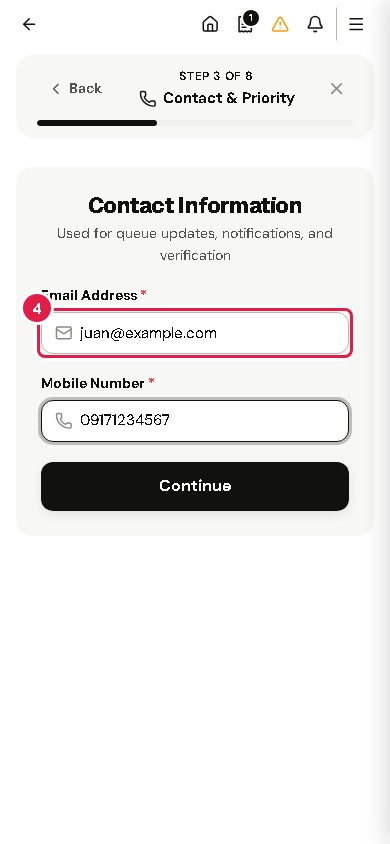
Type your Email Address and Mobile Number. The portal uses them for queue updates, notifications and checking who you are.
Tap Continue.
Tap the office you need, then the service you need. Tap Continue.
Tip On the identity step you can tick Connect my details to this device for faster queuing next time.
If something goes wrong
"Notice: You already have an active ticket in …": you already have a ticket there. If you need another service, tap Continue again to queue anyway.
An office is grey: its line is closed now.
You want to stop: tap the X at the top, then Discard & Exit.
3Confirm and save your ticket
Check your request, get your ticket, and keep its tracking code.
What this is for
Before your ticket is made, you check everything once. Then you can save a copy of the ticket on your phone.
Before you start
You chose your office and service.
Steps
On Transaction Details, type your purpose if asked. Some services ask for more information first. Tap Continue to Review.
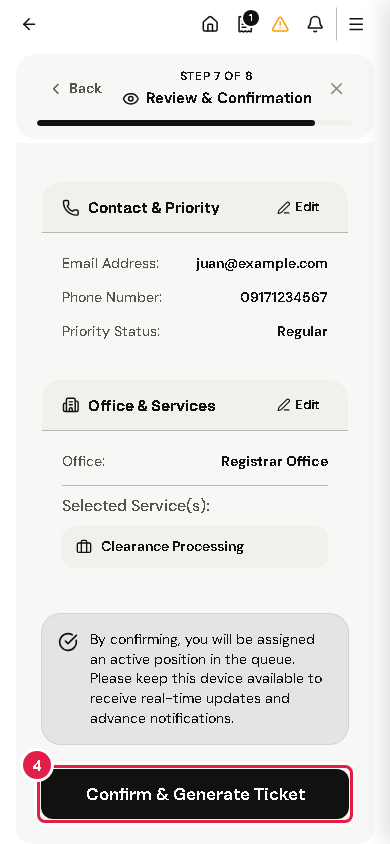
Read Review & Confirm. It shows your details, office and service.
To fix something, tap Edit on that part.
Tap Confirm & Generate Ticket. This gives you a place in the line.
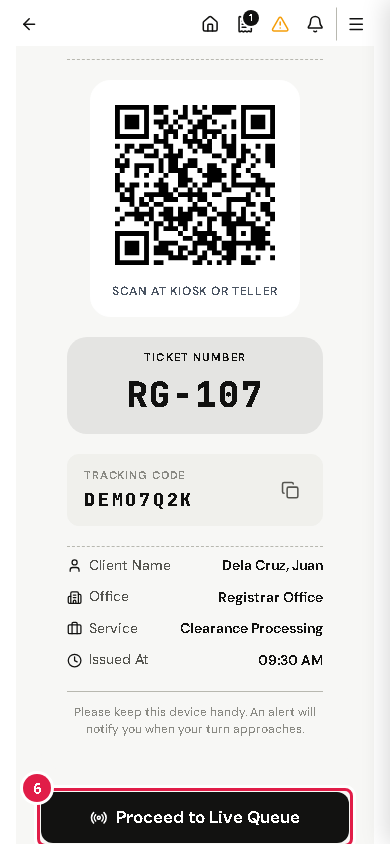
Your ticket shows its number, a QR code and a TRACKING CODE. Tap Save as Image to keep a copy on your phone.
Tap Proceed to Live Queue to watch your place in line.
Tip Under the QR code the ticket says SCAN AT KIOSK OR TELLER.
Warning The portal asks you to keep this phone handy. An alert tells you when your turn is near.
If something goes wrong
"Submission Error": read the message, go back with Edit, and try again.
You need a ticket for another office: tap Register Another.
4Follow your place in line
See how many people are ahead of you and answer the alert when your turn is near.
What this is for
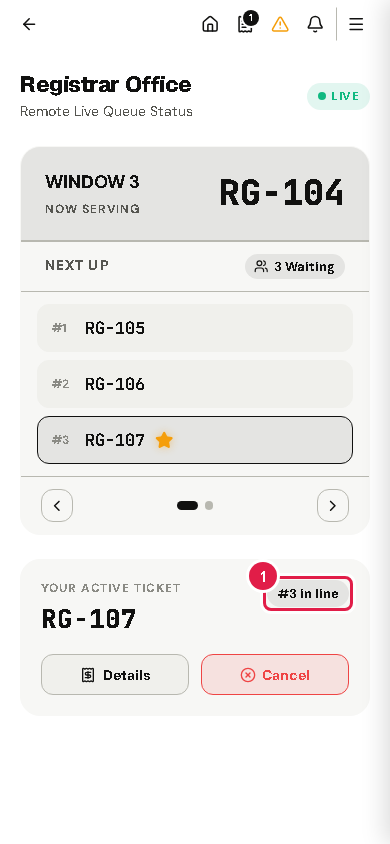
The live queue page shows who is being served now and your place in line. It updates by itself every few seconds.
Before you start
You tracked a ticket, or tapped Proceed to Live Queue.
Steps
Find YOUR ACTIVE TICKET. The badge shows your place, for example #3 in line. Your ticket also has a star in the NEXT UP list.
At the top, NOW SERVING shows the number each window is serving.
When your turn is near, Your Turn is Approaching! pops up. Start walking to the office.
Tap I'm on my way, or I need more time if you need a moment. The staff at the counter see your answer.
When the counter calls you, the page shows NOW SERVING YOUR TICKET! Go to the counter.
After you are served, the page shows Service Concluded. You can rate your visit with Evaluate Service Experience.
Tip Keep the remote portal open. The alert in step 3 shows on its pages, and EZQueue also emails it to you. The portal also offers an Android app (Download App) for push alerts.
If something goes wrong
"No Active Ticket Found": the ticket is no longer in the line. Tap Track Another Ticket to look up another code.
5See or cancel your tickets
Find all tickets on this phone, and cancel one you no longer need.
What this is for
You can cancel a ticket you no longer need. You can also see every ticket made on this phone.
Before you start
You have a ticket on this phone.
Steps
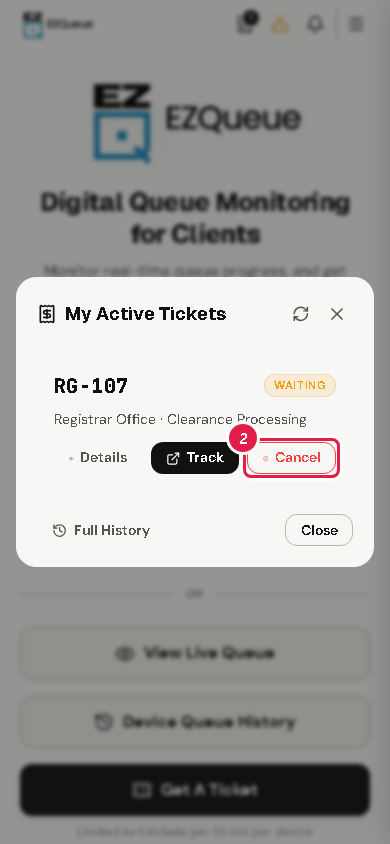
Tap the ticket icon at the top (My Active Tickets). It shows how many active tickets you have.
Find the ticket and tap Cancel.
Choose a reason, for example Wait time is too long. For Other reason, type your reason.
Tap Confirm. The ticket is cancelled.
TipTrack opens the ticket's live queue. Full History opens Device Queue History, with past and active tickets from this phone.
Tip The bell icon opens Notifications & Announcements. Tap Mark All Read when you have read them.
If something goes wrong
"Failed to cancel ticket. Please try again.": check your internet, then try again.