What this is for
The kiosk asks who you are. Then it asks how to reach you, which you can skip.
Before you start
- You chose who you are on the first screen.
Steps
Students, alumni, faculty and staff: type your ID number. If you have an ID with a QR code, you can tap Scan QR instead.
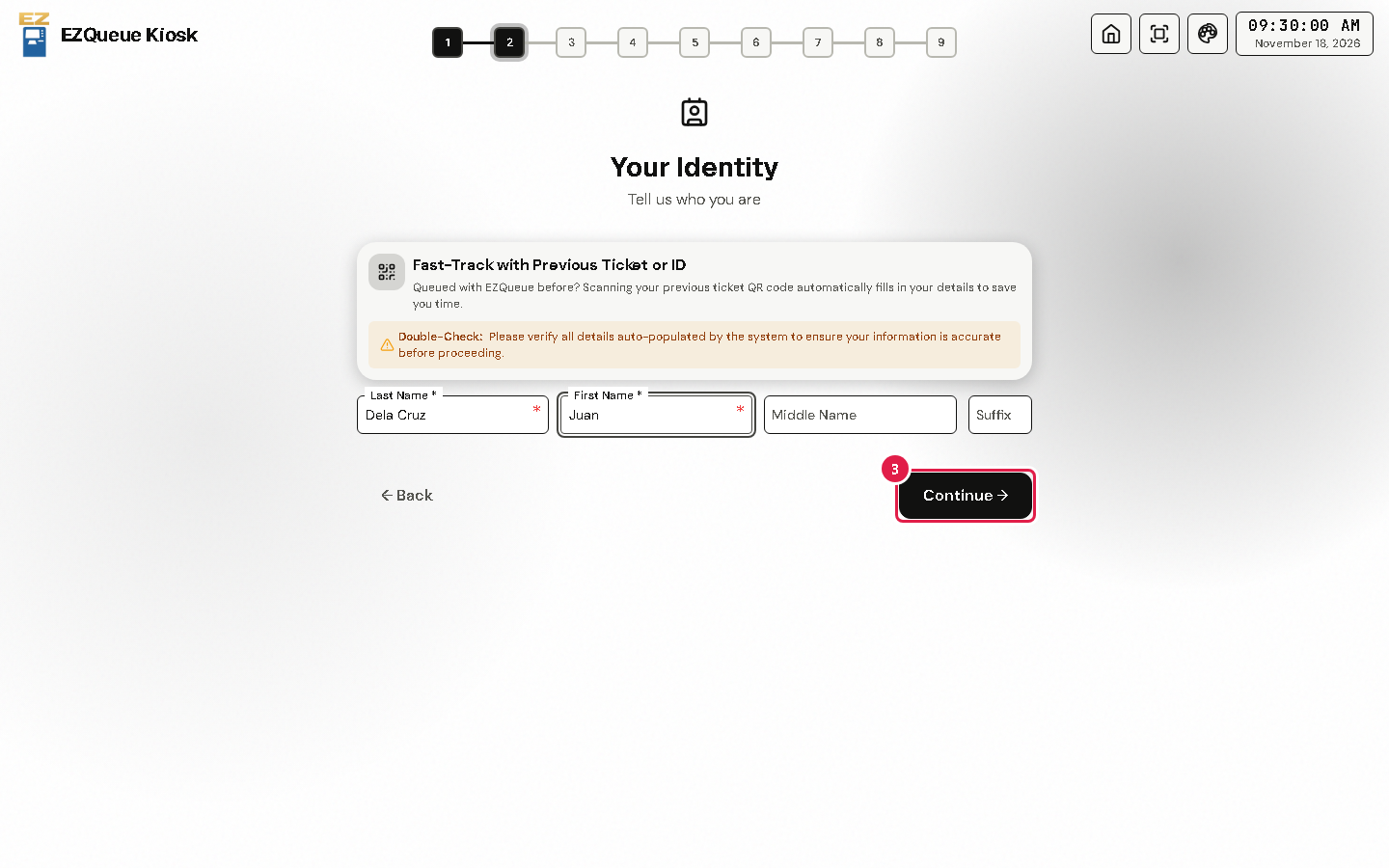
Type your Last Name and First Name. Students, alumni, faculty and staff also choose their course or college.
Tap Continue.
The Contact Information screen is optional. You can type your Phone Number and Email, or leave them empty.
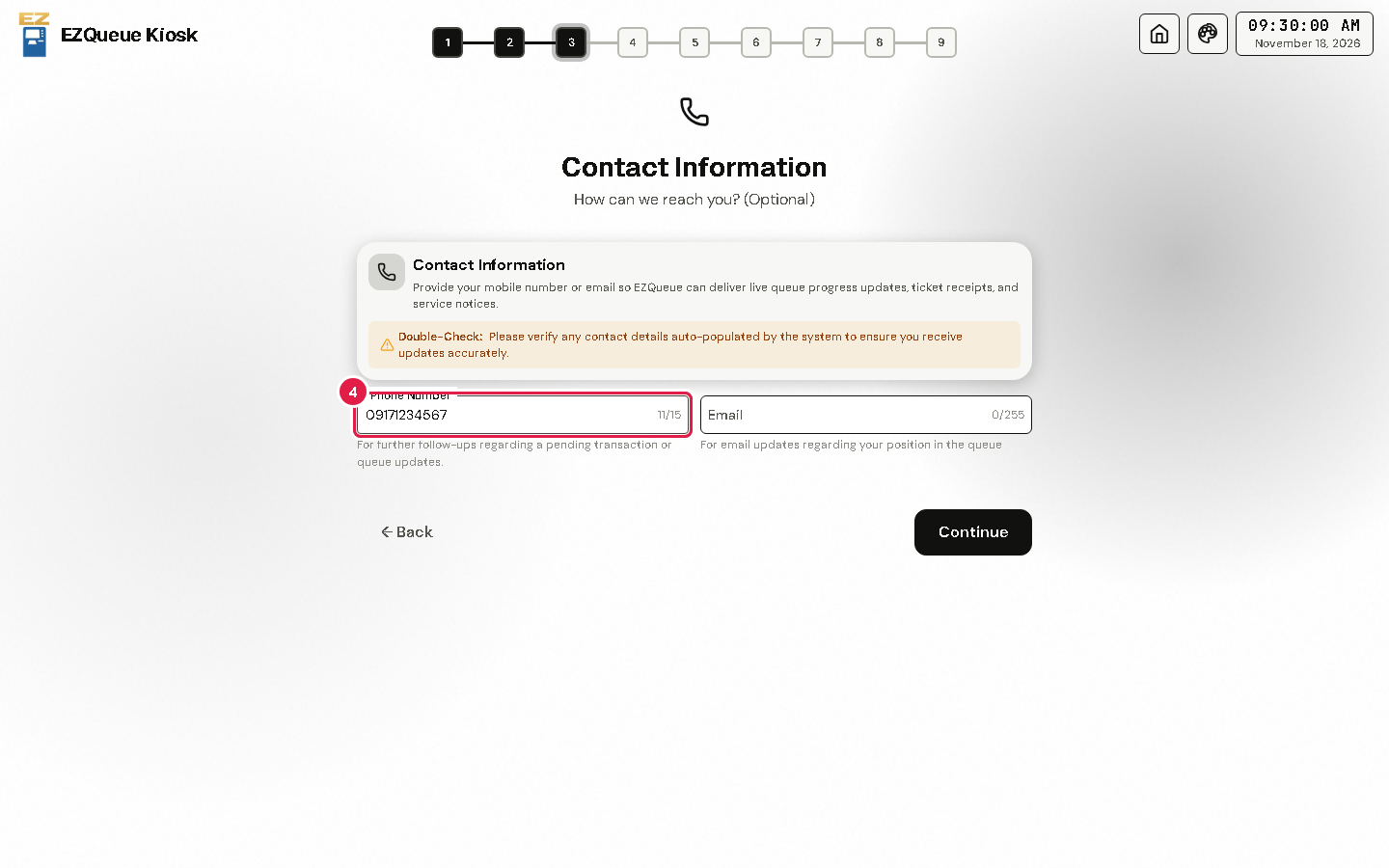
Tap Continue.
Tip The kiosk gives regular tickets only. Senior citizen, PWD or pregnant? Ask the staff at the counter first. Offices that use the Priority Lane can register you there.
If something goes wrong
- Continue is grey: a box with a star (*) is still empty. Fill it in.
- "Active Queue Detected": you already have an active ticket in the office it names. Use that ticket, or ask the staff at the counter.