What this is for
Before the kiosk makes your ticket, you can add a short note and check that everything is right.
Before you start
- You chose the office and service.
Steps
On Additional Details, type why you need the service in Purpose / Notes. This is optional. For documents, set how many copies you need.
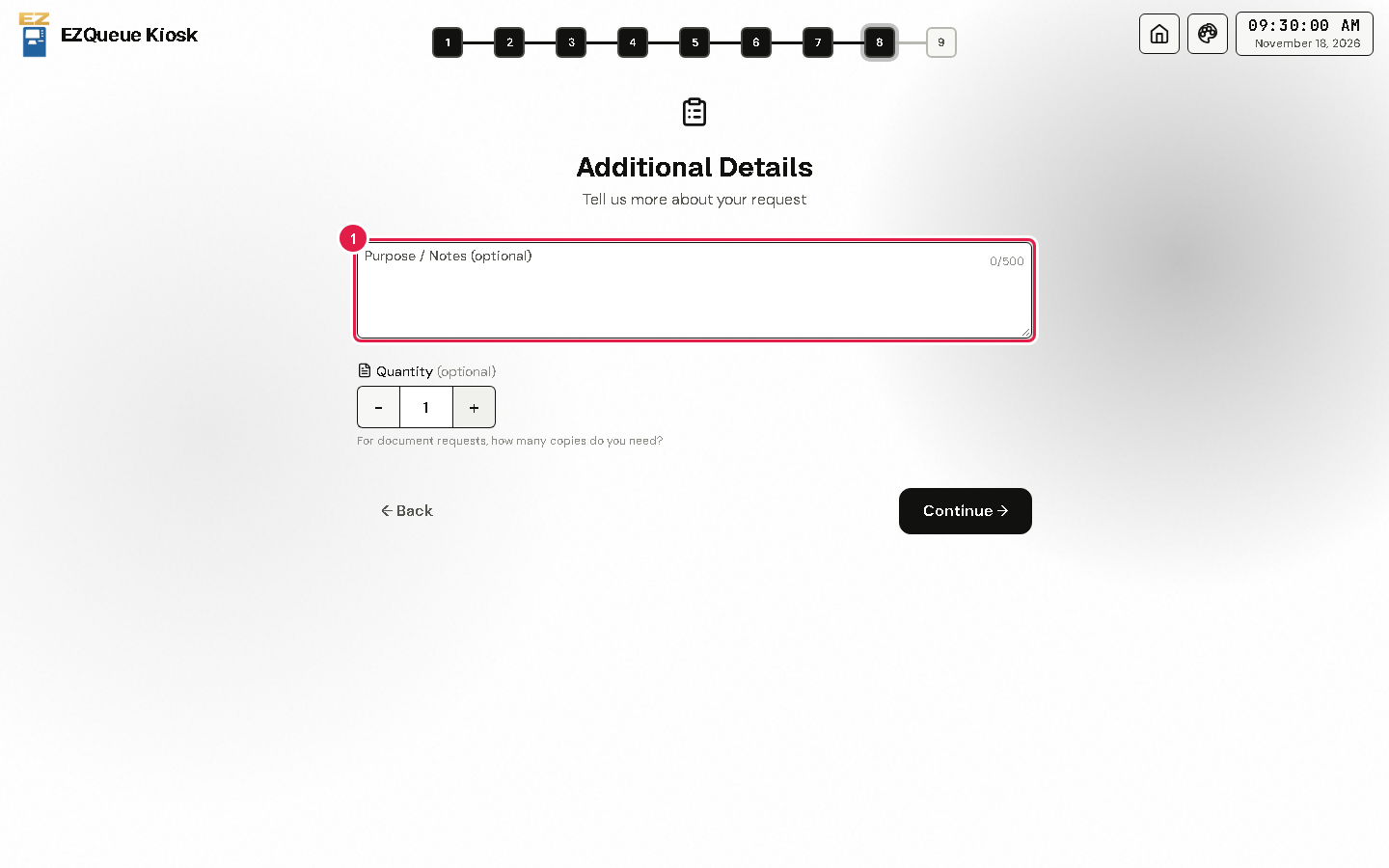
Tap Continue.
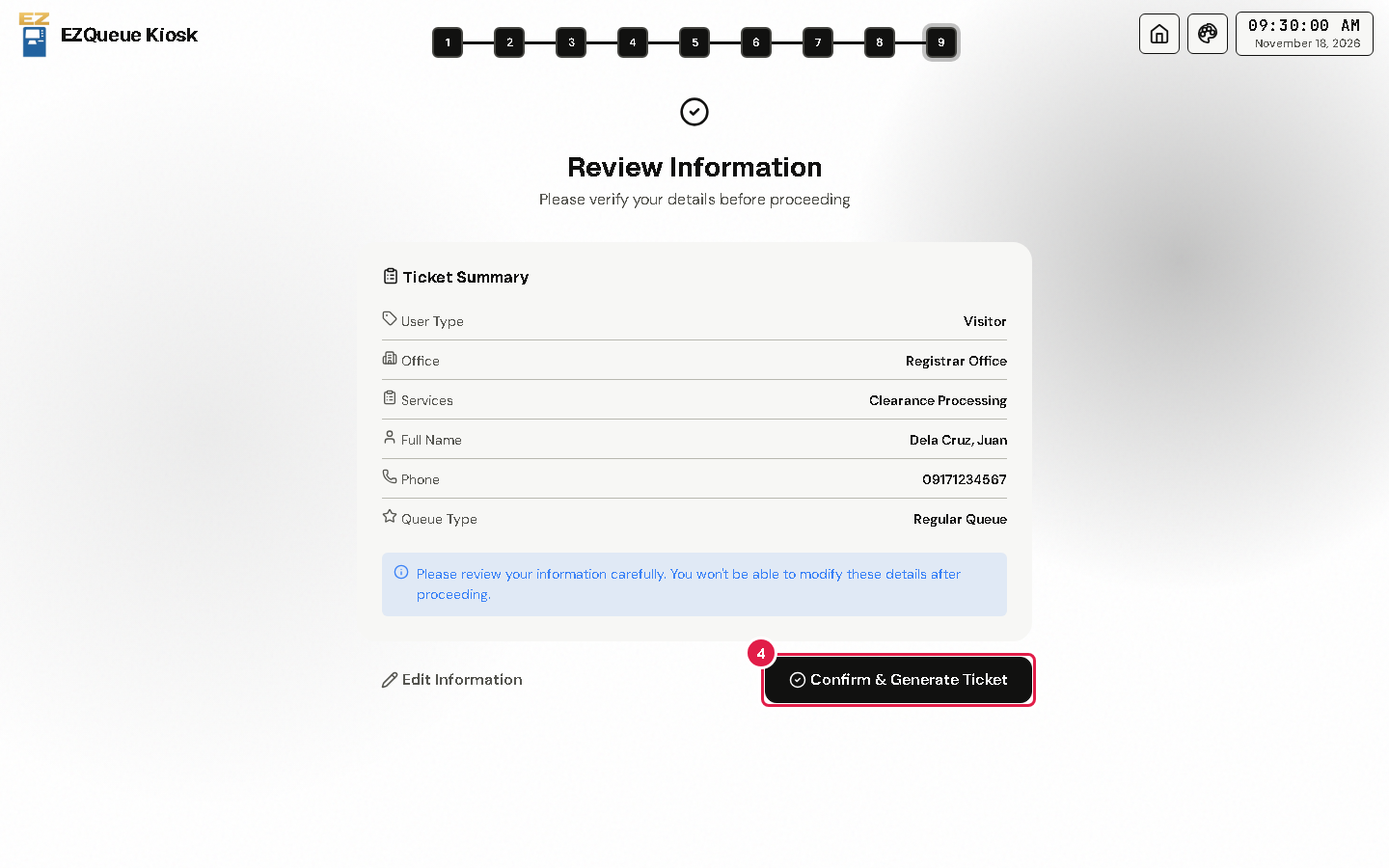
Read the Review Information screen. Check your name, office and service.
If everything is right, tap Confirm & Generate Ticket.
Tip Some services, like document requests, show a longer form before this screen. Fill in each part, then tap Continue.
If something goes wrong
- Something is wrong on the review screen: tap Edit Information and fix it.