What this is for
Each office has its own line. Choosing the right office and service puts you in the right line.
Before you start
- You typed your details.
Steps
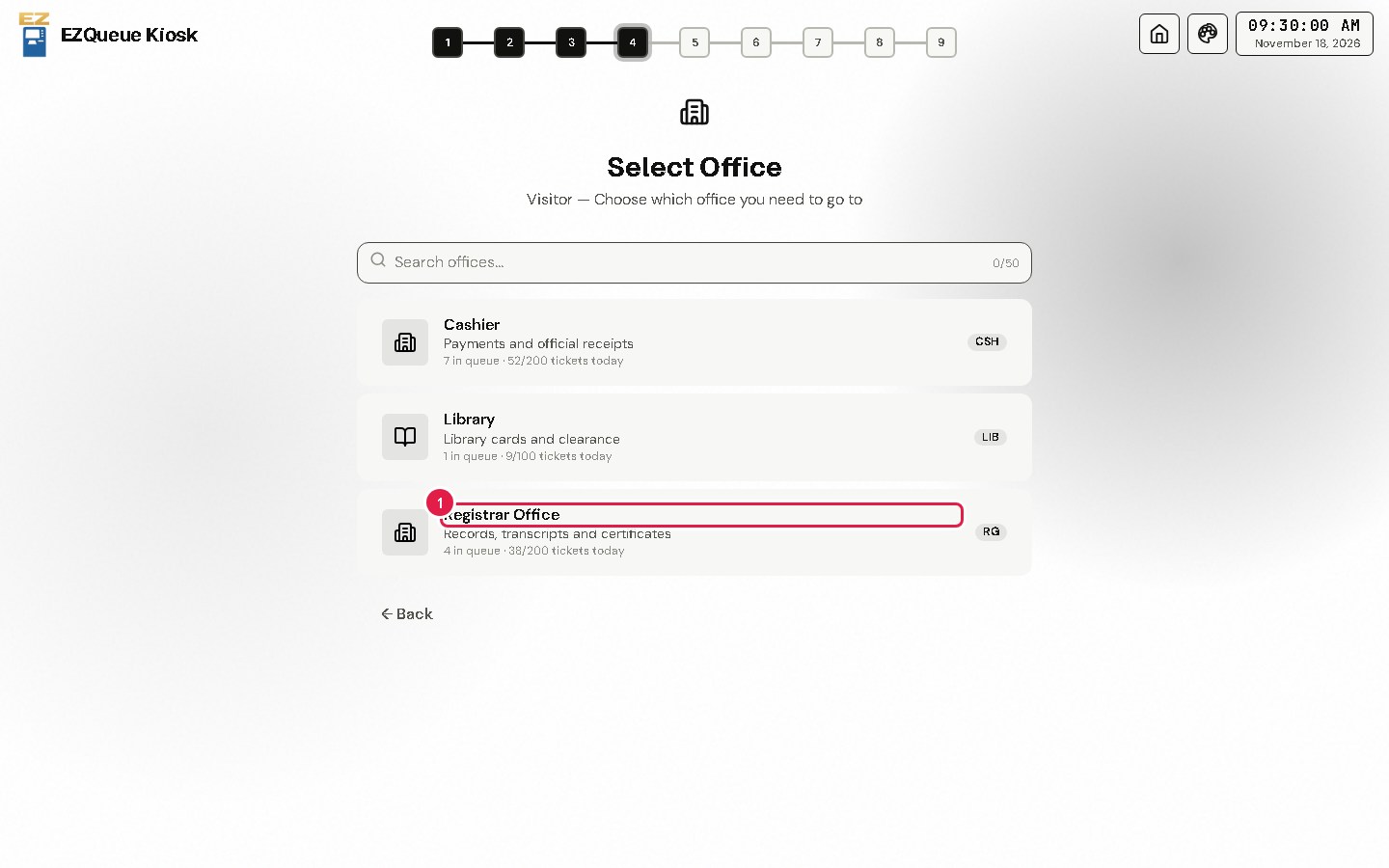
Tap the office you need, for example Registrar Office. You can type its name in Search offices... to find it fast.
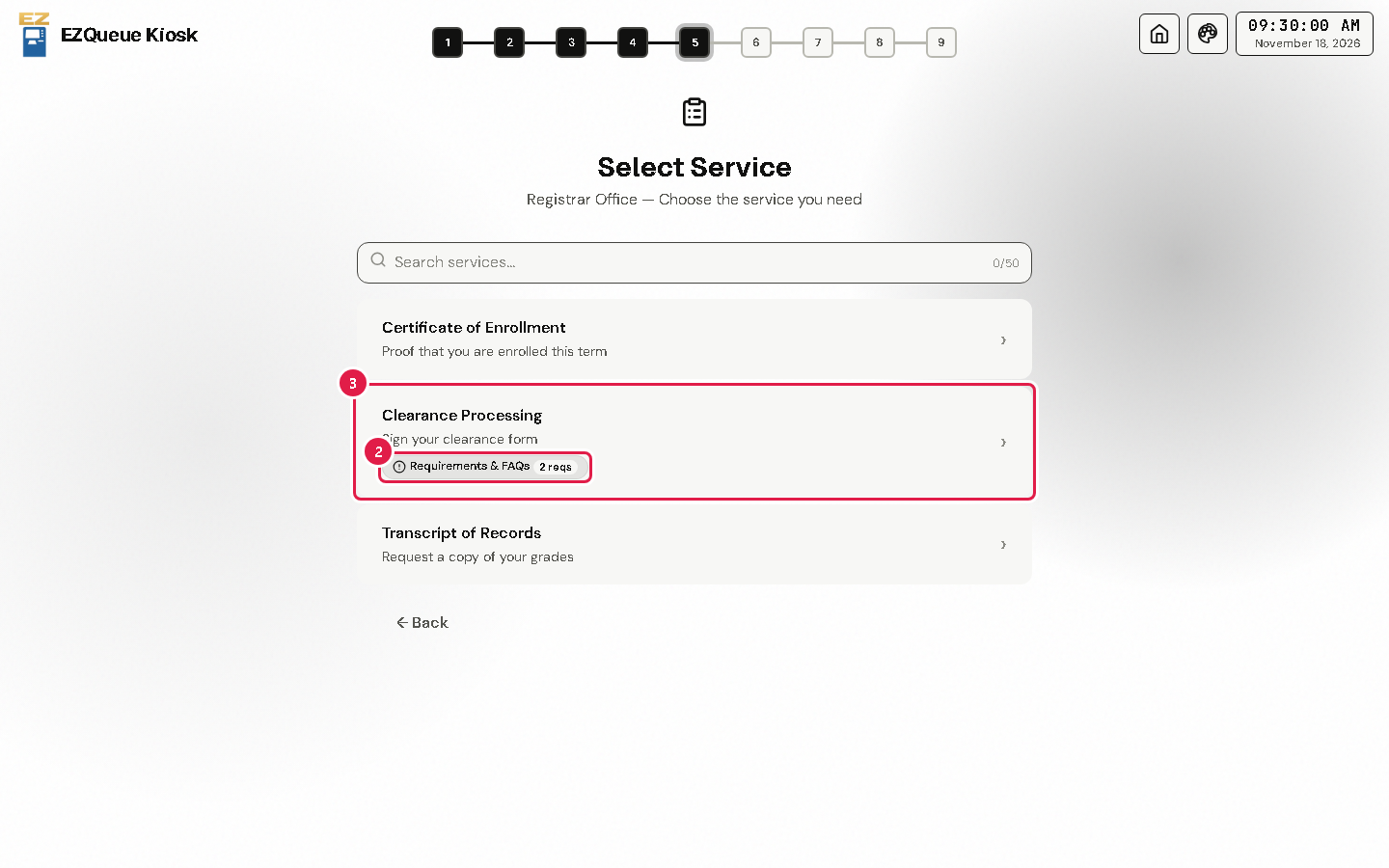
To see what to bring, tap Requirements & FAQs under a service.
Tap the service you need.
Some offices let you choose more than one service. Then tick each one and tap Proceed.
If something goes wrong
- Your office is grey or says it is closed: it is not giving tickets right now. Ask the staff nearby.
- You do not see the service you need: ask the staff at that office's counter.