EZQueue · Kiosk
Kiosk – Setup and Care Manual
For staff who set up the kiosk and look after its printer.
1Open the kiosk admin settings
Unlock the hidden admin panel with the kiosk passcode, and lock it again.
What this is for
The kiosk has hidden admin settings for its printer and passcode. Clients cannot see them.
Before you start
- You know the kiosk passcode.
Steps
Tap the EZQueue Kiosk logo at the top left 5 times, quickly (within 3 seconds).
Admin Access opens. Type the passcode with the number keys. CLR clears it.
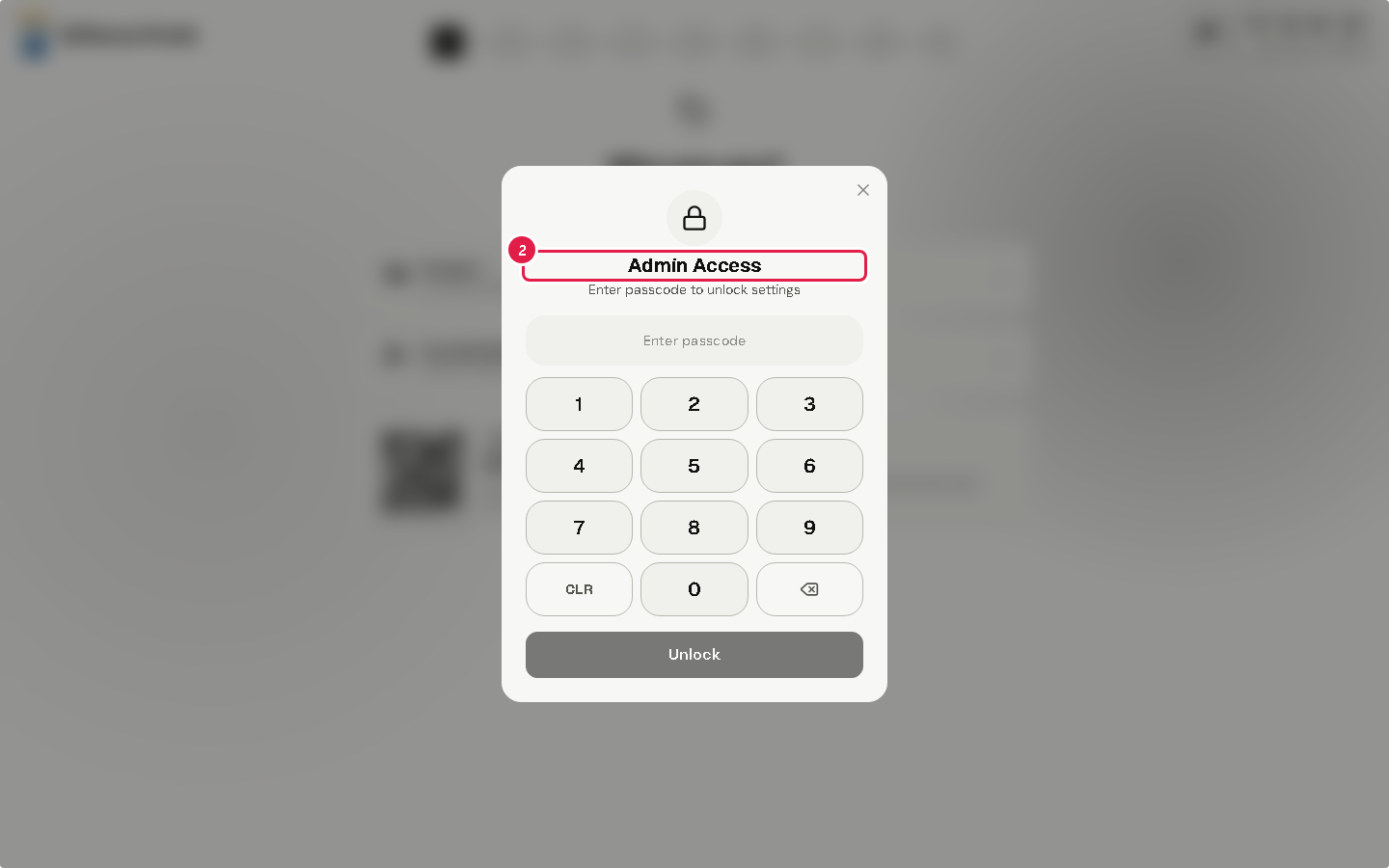
Tap Unlock. Kiosk Admin Settings opens.
When you are done, tap Lock & Return to Kiosk.
Tip The first time, the kiosk asks you to Set Kiosk Passcode. Choose 6 to 12 digits.
Warning After 5 wrong passcodes, the kiosk locks for 1 minute. Each further wrong try doubles the wait, up to 15 minutes.
If something goes wrong
- "Incorrect passcode": type it again. Mind the lock after 5 wrong tries.
- Nothing opens: tap the logo 5 times faster. The count starts over after 3 seconds.
2Set up the ticket printer
Choose the thermal printer the kiosk prints tickets on, and test it.
What this is for
The kiosk prints each ticket on a thermal receipt printer. It needs to know which printer to use.
Steps
- Go to Thermal Printer Configuration.
- Tap Refresh to find the printers.
- Tap your printer in the list. It shows its port and driver.
- Tap Test Print Receipt. Check that a test ticket comes out.
- Tap Save as Default Printer.
- Tap Lock & Return to Kiosk.
Tip Setup Guide at the top of the panel opens the Kiosk Setup & Hardware Guide. It has steps for the printer driver and for printing problems.
If something goes wrong
- "Print failed to reach device": check the cable and power, tap Refresh, choose the printer again and test again.
- No printer in the list: connect the printer or install its driver, then tap Refresh.
3Change the kiosk passcode
Set a new passcode for the kiosk admin settings.
What this is for
The passcode keeps clients out of the kiosk admin settings.
Before you start
- You opened Kiosk Admin Settings.
Steps
- Go to Admin Security & Passcode.
- Type the Current Passcode.
- Type the New Passcode, then type it again in Confirm New Passcode.
- Tap Update Passcode.
- Tap Lock & Return to Kiosk.
Warning The kiosk accepts 6 to 12 digits, numbers only.
If something goes wrong
- An error shows after Update Passcode: read the message. Check the current passcode and that the new one is 6 to 12 digits.